How to Install the Inagene Web App
iOS mobile devices
Open your browser (Safari, Chrome or Edge), go to the Inagene portal, and login.
- Tap the "Share" icon in the main browser menu.

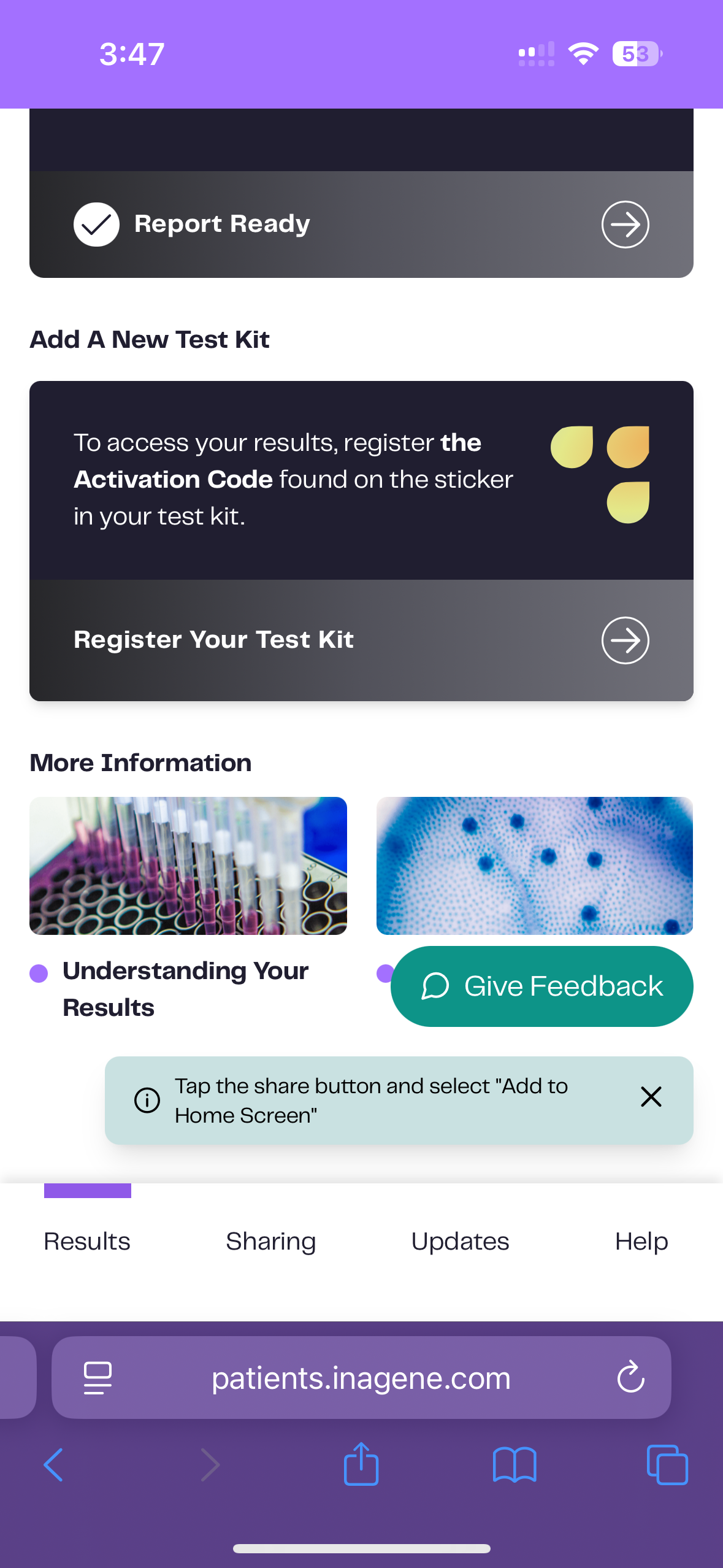
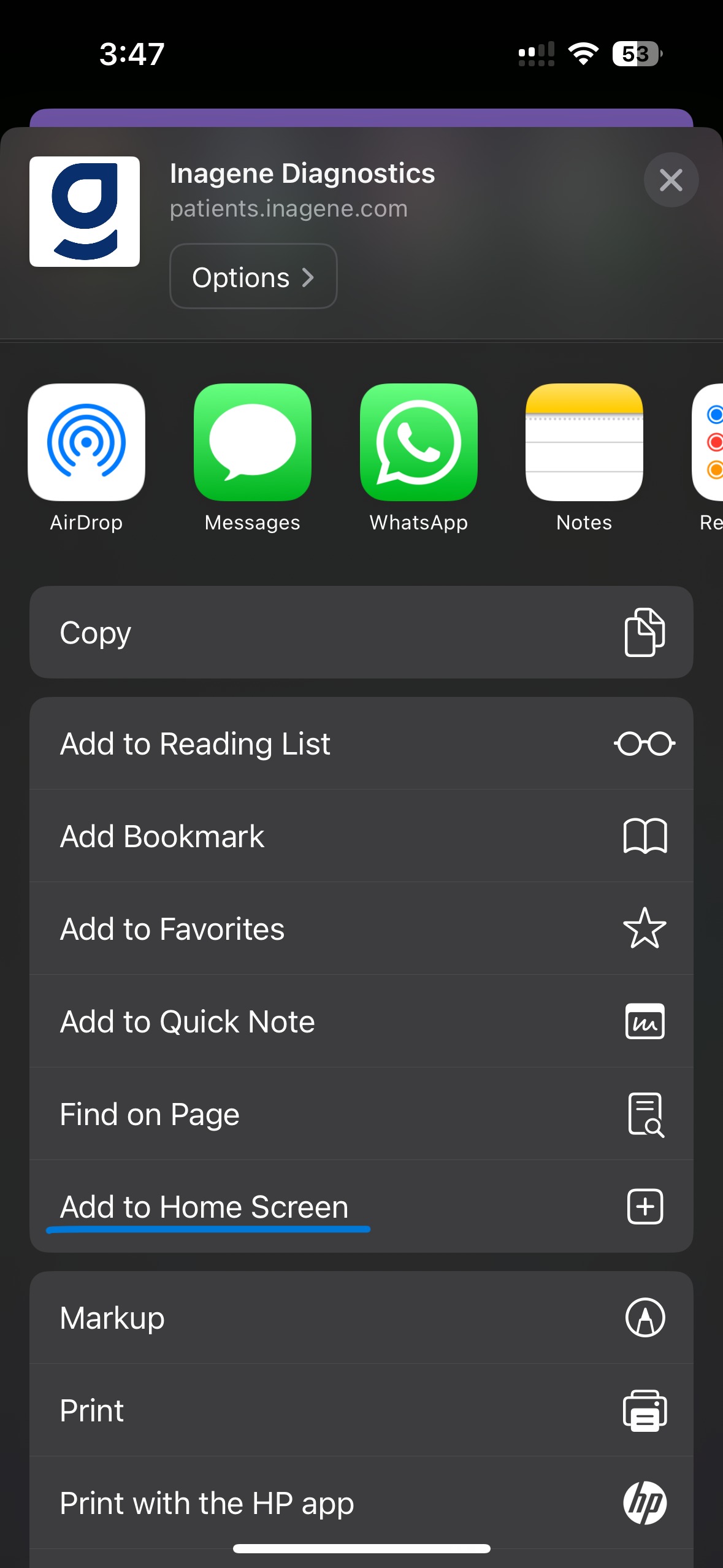
- Scroll down and tap "Add to Home Screen".
- Tap "Add" to confirm.
Android mobile devices
- Open your browser (Chrome or Edge), go to the Inagene portal, and login.
- In the bottom-right corner tap the "Install" button.

- Tap "Add" to confirm.
The app will appear on your home screen and you can use it to access the Inagene portal.
Desktop - Windows or macOS
Open your browser (Chrome or Edge), go to the Inagene portal, and login.
- In the bottom-right corner click the "Install" button.

- Click "Install" to confirm.
The app will open in its own window and be available from your Desktop, or Start menu.
What is a Progressive Web App?
A Progressive Web App (PWA) is a website that behaves like a native app. It can be installed on your device, can be accessed from your home screen, and works quickly offering an app-like experience.
Tips & Troubleshooting
- On Android, currently the app works when using Chrome or Edge.
- On iOS, the web app is supported when using Safari, Chrome or Edge only.
- If you closed the install notification, it will remain not visible for up to 30 days. In order for it to show again, you can clear your browser cache.
- If you don’t see the install option, try refreshing the page or clearing your cache.
- The Inagene Web App does not require you to install or download any apps from App Store or Play Store.
Was this article helpful?
That’s Great!
Thank you for your feedback
Sorry! We couldn't be helpful
Thank you for your feedback
Feedback sent
We appreciate your effort and will try to fix the article